


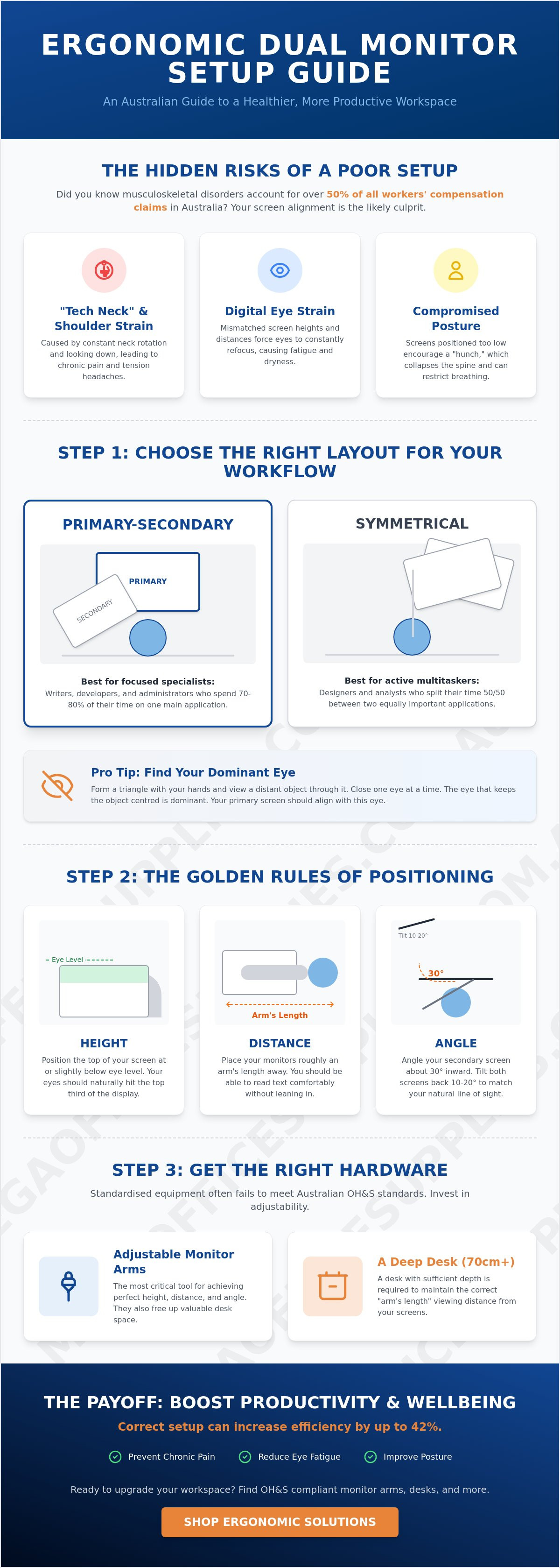
Did you know that musculoskeletal disorders account for more than 50% of all workers' compensation claims across Australia? If you're currently dealing with chronic shoulder tension or the persistent ache of "tech neck," your screen alignment is the most likely culprit. Learning how to set up dual monitors ergonomically is about more than just tidying your desk; it's a vital requirement for maintaining professional health. At Mega Office Supplies, we utilise our decades of combined industry experience to provide the hardware and knowledge needed for high-capacity workplace transitions.
You probably agree that eye fatigue and poor desk organisation make it difficult to stay focused during long shifts. This guide promises to help you master the science of screen positioning to eliminate physical strain and significantly increase your productivity. We will preview the essential adjustments for height and tilt, explain the role of your dominant eye in screen placement, and help you choose the right monitor arms to ensure your setup complies with Australian OH&S recommendations.
Key Takeaways
- Understand the critical link between screen alignment and workplace health to prevent the long-term risk of musculoskeletal disorders.
- Determine if your workflow requires a primary-secondary or symmetrical layout based on your specific task priority and dominant eye.
- Master the precise height and distance principles for how to set up dual monitors ergonomically to eliminate persistent neck and shoulder tension.
- Identify the essential hardware, including adjustable monitor arms and specific desk depths, required for a compliant Australian workstation.
- Learn how to organise your physical desktop and office stationery beneath elevated screens to maximise your available workspace.
Understanding Dual Monitor Ergonomics and Workplace Health
Ergonomics is the science of aligning digital displays with natural human biomechanics to ensure the workplace fits the worker. For multi-monitor setups, this means more than just having extra screen real estate. It involves a precise arrangement that supports your posture and vision. While industry data suggests that adding a second screen can provide a 42% boost in efficiency, this productivity gain is often offset by an increased risk of musculoskeletal disorders if the hardware is poorly positioned.
The "Tech Neck" phenomenon is a specific concern for multi-screen users. It results from improper viewing angles that force the head into a forward or rotated position for extended periods. When you learn how to set up dual monitors ergonomically, you address how the brain processes two distinct visual fields. Mismatched heights or distances force the eyes to constantly refocus, leading to cognitive fatigue and physical strain. Professional workstation design aims to keep your focal point within a comfortable range to protect your long-term health.
To better understand this concept, watch this helpful video:
The Risks of an Unoptimised Multi-Screen Setup
An unoptimised setup leads to repetitive neck rotation, which places significant stress on the cervical spine. This often results in tension headaches and shoulder pain. Eye strain, or Asthenopia, is another common issue. It occurs when your monitors have mismatched brightness levels or different focal distances, forcing your ocular muscles to work harder. If screens are placed too low on a standard desk, you will likely develop a "hunch" that collapses your posture and restricts breathing. These physical tolls can lead to chronic injury over time.
Australian OH&S Standards for Digital Workstations
Australian workplace safety expectations for screen-based work are grounded in the need to minimise physical risk. Musculoskeletal disorders are the leading cause of workers' compensation claims in Australia, representing over 50% of all cases. Standards such as AS/NZS 4442 provide a framework for office furniture and desk dimensions to ensure safety. Standardised equipment often fails in high-volume corporate environments because it doesn't account for individual physiological differences. Adjustable monitor arms and sit-stand desks are vital tools for meeting these professional health requirements and maintaining a compliant, pain-free workstation.
Selecting Your Layout: Primary-Secondary vs. Symmetrical
Determining your layout is the first practical step in learning how to set up dual monitors ergonomically. Most professionals fall into one of two categories: the focused specialist or the active multitasker. Your choice between a primary-secondary configuration or a symmetrical split depends entirely on how you interact with your software. Before positioning your hardware, you must identify your dominant eye. Extend your arms and form a small triangle with your hands. Focus on a distant object through that triangle and close one eye at a time. The eye that keeps the object centred is your dominant eye. Your primary display should ideally be aligned with this side of your vision to reduce cognitive load and visual strain.
When to Use the Primary-Secondary Arrangement
The primary-secondary arrangement is the standard for roles requiring deep focus. It is the preferred choice for writers, software developers, and administrative professionals who spend the majority of their time in one main application. In this setup, your main screen sits directly in front of you at a zero-degree angle. This ensures your neck remains in a neutral, forward-facing position for the bulk of the workday.
The secondary screen acts as a reference point for emails, spreadsheets, or research materials. It should be placed to the side of your dominant eye at roughly a 30-degree angle. You must avoid the common trap of over-utilising the secondary screen for active tasks. If you find yourself staring at the side monitor for more than a few minutes at a time, your posture will suffer. Investing in high-quality ergonomic office furniture allows you to adjust these angles with precision as your daily tasks change.
The Case for Symmetrical Monitor Placement
Symmetrical placement is better suited for data entry or roles that involve constant switching between two windows. If your workflow involves frequent "alt-tabbing" or comparing two datasets side-by-side, this layout is more efficient. In this configuration, you align the monitors so their inner bezels meet directly in front of your nose. This creates a wide, immersive field of view that treats both screens as a single, continuous workspace.
To maintain a consistent focal distance, you must arrange the screens in a slight arc. This ensures the outer edges of the monitors are the same distance from your eyes as the centre meeting point. Without this curve, your eyes must constantly adjust their focus as you scan from left to right. This repetitive refocusing leads to rapid eye fatigue and can diminish your productivity by the afternoon. A symmetrical setup requires a desk with sufficient depth to accommodate the arc without pushing the screens too close to your face.
The Golden Rules of Positioning: Height, Distance, and Angle
Mastering how to set up dual monitors ergonomically requires adhering to precise physical measurements. If your screens are even slightly misaligned, your body will compensate by tilting your head or slouching. Start with the Eye-Level Rule. Your natural horizon should align with the top third of the screen. This ensures you spend most of your time looking slightly downward, which is the natural resting position for human eyes. This rule applies regardless of whether you are using 24-inch or 27-inch displays.
A commonly overlooked demographic is the professional who wears bifocals or progressive lenses. If you fall into this category, the standard eye-level rule might cause you to tilt your head back to see through the bottom of your glasses. This leads to severe neck strain. You should lower your monitors slightly until you can see the entire display without lifting your chin. Always prioritise your neck's neutral alignment over a generic height recommendation. If you find yourself leaning forward, it's a sign that your monitors are positioned incorrectly.
The Arm’s Length Principle is your second metric for success. Your monitors should sit between 50cm and 70cm from your face. A quick way to test this is to sit back in your ergonomic office chair and extend your arm. Your fingertips should just touch the glass. If you have to lean in to read fine print, you should increase the font size in your software settings rather than moving the hardware closer. This distance minimises the effort your eye muscles must exert to maintain focus throughout an eight-hour shift.
Step-by-Step Vertical and Horizontal Alignment
Use a visual guide to ensure both panels are perfectly horizontal. Even a minor height difference between two monitors forces your eyes to constantly refocus as you move your gaze across the bezel. This "screen gap" creates significant cognitive load and eye fatigue. Additionally, you should tilt your screens upward by 10 to 20 degrees. This subtle angle matches the natural downward gaze of the eyes and helps reduce glare from overhead office lighting. Ensuring your screens are physically locked into place prevents them from drifting out of alignment during the day.
Eliminating Glare and Visual Noise
Position your workstation perpendicular to windows. Placing monitors directly in front of or behind a window creates high contrast or reflections that cause immediate eye strain. In bright, open-plan Australian offices, you must ensure your colour temperature and brightness settings match exactly across both panels. If one screen is warmer or brighter than the other, your brain will struggle to process the inconsistent data. For very bright environments, consider anti-glare filters to maintain visual clarity. Finally, implement the 20-20-20 rule: every 20 minutes, look at something 6 metres away for 20 seconds to reset your focal distance.
Essential Hardware for a Compliant Australian Workstation
Achieving a compliant workstation requires hardware that allows for manual precision. While earlier sections focused on the theory of alignment, this section addresses the physical equipment needed to execute those principles. A primary challenge in learning how to set up dual monitors ergonomically is overcoming the limitations of standard factory stands. These stands rarely offer the vertical range necessary to meet the Eye-Level Rule, especially for taller users or those using a standing desk. Professional-grade monitor arms are a non-negotiable requirement for a high-capacity workspace.
Desk depth is another critical factor. To maintain the Arm's Length Principle with dual 27-inch displays, your desk requires a minimum depth of 750mm to 800mm. Shallow desks force the screens too close to your face, causing immediate eye strain and discomfort. Additionally, integrated cable management reduces cognitive clutter and eliminates physical hazards under the desk. A clear landing zone for stationery beneath the screens keeps your immediate workspace functional and organised.
Monitor Arms vs. Desk Stands
Factory stands are designed for a generic user profile and often fail the ergonomic test. They lack the articulating movement required to create the curved arc necessary for symmetrical setups. Gas-spring monitor arms provide dynamic adjustment, allowing you to reposition your screens instantly when transitioning from sitting to standing. When selecting an arm, you must verify the weight capacity. Professional monitors can be heavy. An overloaded arm will drift downward, ruining your ergonomic alignment and forcing your neck into a strained position.
Furniture Synergy: Desks and Seating
Your screens do not exist in isolation. They must work in harmony with your furniture to support a neutral posture. This synergy is only possible when you integrate ergonomic office chairs that provide lumbar support and adjustable armrests. These features ensure your wrists remain in a neutral position while you interact with both displays. To find the right solution for your department, view our full range of computer accessories and monitor arms.
Integrating Your Setup into a Productive Workplace
A productive workplace requires more than just correctly aligned screens. It demands a total environment where physical and digital tools work in unison. Learning how to set up dual monitors ergonomically is only half the battle if your physical paperwork causes you to twist your torso or crane your neck. By utilising monitor arms, you reclaim significant desk real estate. This space beneath your elevated displays is the ideal location for frequently used office supplies. Keeping your desk clear of clutter reduces cognitive load and allows you to maintain focus on high-priority tasks.
Strategic placement of reference materials is vital for maintaining a neutral posture. If you frequently consult lever arch files or printed reports, do not place them to the far side of your workstation. This forces repetitive trunk rotation, which can lead to lower back strain. Instead, use the reclaimed space under your monitors to keep active documents within your primary field of vision. This holistic approach ensures your body remains forward-facing, supporting the ergonomic benefits provided by your dual-monitor arrangement.
The Holistic Desk Fit-Out
To achieve a truly professional aesthetic, you must organise your pens, notepads, and technology accessories for easy reach. Placing a document holder between your keyboard and the base of your monitors is a highly effective way to maintain a forward-facing posture. This setup allows your eyes to move vertically between the paper and the screen rather than horizontally. It minimises neck movement and reduces the risk of fatigue during data-intensive tasks. A clean, organised desktop projects an image of professional-grade efficiency and significantly lowers workplace stress.
Procuring for Scale: Schools and Government Departments
Mega Office Supplies serves as a dependable partner for national workplace fit-outs and high-volume ergonomic upgrades. We understand the logistical complexities faced by procurement officers in schools, healthcare facilities, and government departments. Our team brings over 20 years of combined industry experience to every project, ensuring that your organisation receives reliable, standardised hardware that meets Australian OH&S expectations. Whether you are upgrading a single home office or a massive corporate headquarters, we provide the logistical prowess needed to deliver consistent results across your entire national footprint. We focus on durability and manual precision to ensure your investment supports long-term workplace health and operational stability.
Optimising Your Professional Workspace for Long-Term Health
Achieving a pain-free workstation requires a disciplined approach to screen height, tilt, and focal distance. You must also select a layout that matches your specific daily workflow, whether that involves a focused primary-secondary setup or a symmetrical multitasking arc. Implementing these precise steps for how to set up dual monitors ergonomically ensures your hardware supports your physical health rather than compromising it. By addressing the "tech neck" phenomenon early, you protect your cervical spine and maintain high productivity levels throughout the afternoon.
Mega Office Supplies serves as a dependable partner for businesses and government departments across the country. We provide national delivery across Australia, backed by our team's 20 plus years of combined industry experience. Our catalogue features a comprehensive range of professional-grade office technology and furniture designed for manual precision and lasting durability. You can rely on our logistical prowess to handle high-volume demands without friction. Browse our range of Ergonomic Furniture and Monitor Arms to start your workplace transformation. Taking the time to refine your environment today will result in a more comfortable and efficient professional future.
Frequently Asked Questions
What is the best height for dual monitors to prevent neck pain?
The top of your monitors should be at or slightly below eye level, ensuring your natural horizon aligns with the top third of the screen. This positioning prevents you from tilting your head up or down, which is the primary cause of chronic neck strain. If you wear bifocals, you may need to lower the screens further to maintain a neutral chin position while viewing through the lower portion of your lenses.
Should dual monitors be flat or angled towards the user?
Dual monitors should be angled toward you in a slight arc to maintain a consistent focal distance for your eyes. This "cockpit" arrangement ensures that the edges of the screens are the same distance from your face as the centre. If the screens are placed flat, your eyes must constantly refocus as you scan from left to right, leading to rapid visual fatigue and reduced concentration during long shifts.
Can I use a laptop as a second monitor ergonomically?
You can use a laptop as a second screen, but you must use a laptop riser to align the screen height with your primary monitor. Placing a laptop flat on the desk while using a secondary monitor at eye level forces your neck into repetitive, asymmetrical movements. When considering how to set up dual monitors ergonomically with a laptop, we recommend using a dedicated monitor arm with a laptop tray to keep both displays at the same horizontal level.
How do I stop my eyes from hurting when using two screens?
To stop your eyes from hurting, implement the 20-20-20 rule by looking at an object 6 metres away for 20 seconds every 20 minutes. You must also ensure that the brightness and colour temperature are perfectly matched across both displays. If one screen is significantly brighter than the other, your pupils will constantly adjust, which is a leading cause of digital eye strain in professional environments.
Is a single ultrawide monitor better than dual monitors for ergonomics?
A single ultrawide monitor can be better for ergonomics because it eliminates the central bezel and provides a seamless field of view. This setup often reduces the amount of neck rotation required compared to dual screens. However, many professionals still prefer dual monitors for the physical "snapping" of windows into distinct sections. The priority is always maintaining a neutral posture regardless of the screen configuration.
How much desk space do I need for a dual monitor setup?
A professional dual monitor setup typically requires a desk with a minimum depth of 750mm to 800mm. This depth is necessary to maintain the "arm's length" principle, which places the screens 50cm to 70cm from your face. If your desk is too shallow, the screens will be too close, causing eye strain and leaving no room for essential stationery or your keyboard and mouse.
Do I need a special monitor arm for different sized screens?
You don't necessarily need a special arm for different sized screens, but you must choose an articulating monitor arm with independent height and tilt adjustments. Standard fixed-height dual arms often force both screens to the same level, which doesn't work if the monitors have different bezel thicknesses. A gas-spring arm allows you to move each screen independently to ensure the display areas align perfectly at your eye level.
How do I align monitors of different brands or sizes?
When learning how to set up dual monitors ergonomically with different brands, focus on matching the top edges of the actual display areas rather than the outer plastic frames. This creates a consistent horizontal line for your eyes to follow. You should also use your computer's display settings to digitally align the screens, ensuring your mouse cursor moves smoothly across the gap without "jumping" up or down.

Article by
Mega Office Supplies Team
The Mega Office Supplies Team provides practical guidance for Australian businesses, schools, government organisations, healthcare providers, hospitality venues, warehouses and home offices. Based in Tweed Heads South, Mega Office Supplies is a family-owned and operated Australian business offering office stationery, workplace furniture, technology products, labels, printers, cleaning and janitorial supplies, safety products, art materials, education resources and everyday business essentials from trusted brands.
General Information
This article is provided as general information only to help customers compare and choose office, workplace, school, cleaning, technology, furniture, safety and business supplies. Product details, specifications, compatibility, availability, pricing and suitability may vary. Always check the individual product page, manufacturer information, workplace requirements and relevant safety guidance before purchasing or using a product.


