

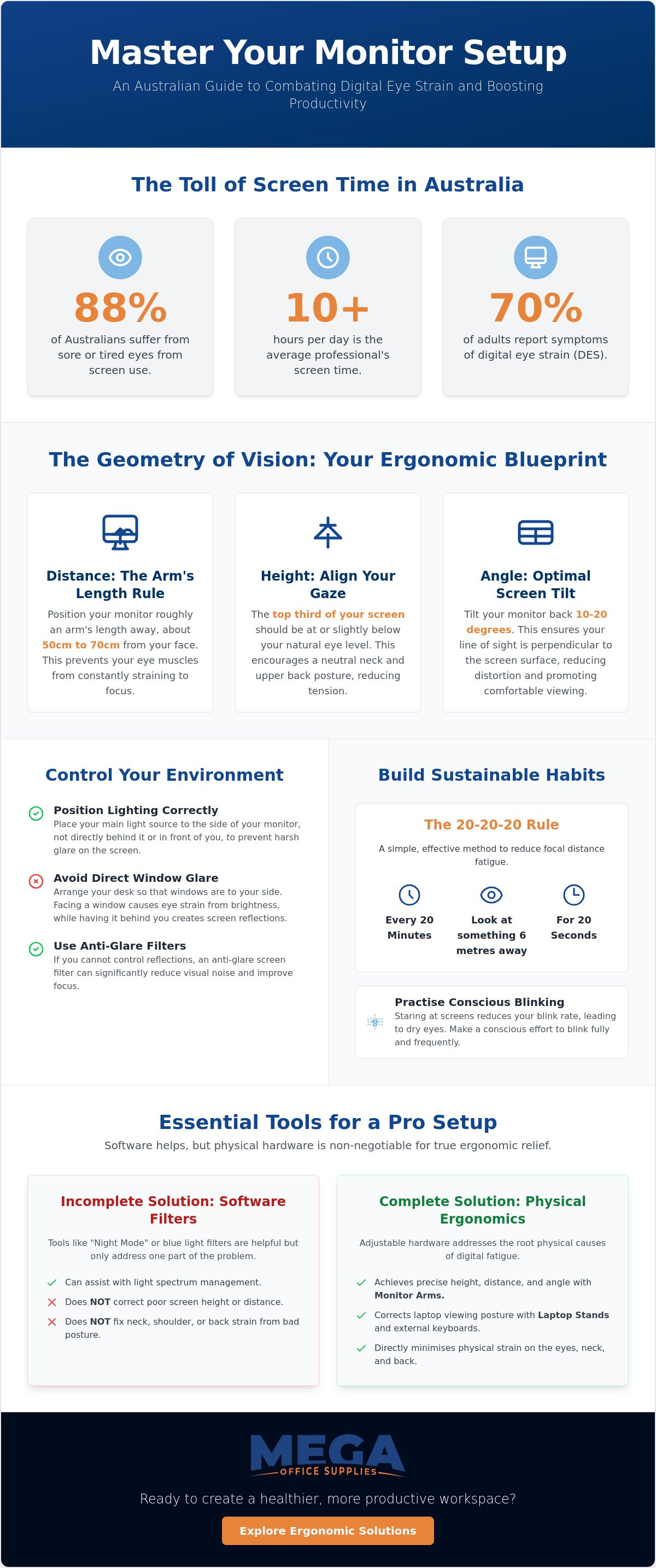
According to the 2022 Vision Index, a staggering 88% of Australians suffer from sore or tired eyes, while nearly 70% of adults report symptoms of digital eye strain. With the average Australian professional now spending over 10 hours per day in front of screens, it's a common frustration to battle recurrent headaches and blurred vision by mid-afternoon. You likely already feel the physical toll of neck and shoulder tension linked to your screen viewing habits. Implementing an ergonomic monitor setup to reduce eye strain is the most effective way to address these issues at the source rather than just managing the symptoms.
As a reliable partner in Australian workplace solutions, we've developed this guide to help you master the science of workstation geometry to minimise digital fatigue and boost your daily productivity. You'll gain access to evidence-based positioning guidelines and a comprehensive checklist for professional office upgrades. Whether you're managing a corporate headquarters or a dedicated home office, these standards ensure a comfortable, pain-free workday. It's time to move beyond temporary fixes and establish a professional-grade environment that supports long-term health and efficiency.
Key Takeaways
- Learn the "Arm's Length" rule and vertical alignment techniques to ensure your screen is positioned for maximum ocular comfort and postural health.
- Discover why a professional ergonomic monitor setup to reduce eye strain requires adjustable hardware like monitor arms and dedicated laptop stands.
- Master environmental light control to eliminate distracting glare and the harmful physiological effects of high-contrast screen viewing.
- Establish sustainable visual habits, including the 20-20-20 rule and blink awareness, to maintain high productivity levels during long periods of screen use.
- Access practical guidelines designed for office-wide ergonomic upgrades across diverse Australian workplace environments, from warehouses to corporate suites.
Understanding Digital Eye Strain in the Australian Workplace
Digital Eye Strain (DES) is no longer a minor workplace grievance; it's a documented occupational hazard that impacts nearly every sector of the Australian economy. In professional and clinical settings, this condition is frequently classified as Computer Vision Syndrome (CVS). It encompasses a range of vision-related problems resulting from prolonged computer, tablet, and mobile phone use. For the modern Australian workforce, where daily screen time often exceeds 10 hours, the symptoms are unmistakable. You may experience blurred vision, persistent dry eyes, or the "after-image" effect, where your vision remains distorted for several minutes after looking away from the display.
These visual issues rarely exist in isolation. There's a direct physiological link between eye fatigue and musculoskeletal discomfort. When your eyes struggle to focus due to poor screen positioning, your body instinctively leans forward or tilts the head to compensate. This subconscious adjustment places immense pressure on the cervical spine and trapezius muscles, leading to chronic neck and shoulder tension. Standard office lighting, which often creates harsh glares or reflections on glossy displays, further forces the ocular muscles to work harder, accelerating the onset of fatigue before the workday is even half finished.
To better understand the mechanics of visual discomfort and how to address them, watch this helpful video:
The Impact of Visual Fatigue on Professional Productivity
Visual fatigue is a primary driver of "presenteeism," a state where employees are physically at their desks but their cognitive accuracy and output are significantly diminished. For Australian businesses and government departments, this translates to a hidden cost in reduced efficiency and increased errors. Identifying "3 PM fatigue" is crucial for any administrator or business owner. It's rarely just a lack of caffeine; more often, it's the result of ocular muscles reaching their physiological limit. Implementing a professional ergonomic monitor setup to reduce eye strain is a foundational requirement for maintaining high-volume output in environments ranging from busy reception areas to logistics warehouses.
Why Software Filters Aren’t a Complete Solution
Many professionals rely on blue light software or "night modes" as their primary defence against fatigue. While these digital tools can assist with light spectrum management, they don't address the fundamental issue of focal distance fatigue. An ergonomic monitor setup to reduce eye strain is about physical geometry, not just the colour of the pixels. Software cannot fix a monitor that's positioned too high, too close, or at an awkward angle. True relief requires physical workstation adjustments that align with human physiology, ensuring the eyes can maintain a relaxed focus throughout the day rather than relying on digital-only fixes that ignore the structural causes of the problem.
The Geometry of Vision: Height, Distance, and Angle
Achieving a precise ergonomic monitor setup to reduce eye strain relies on the fundamental principles of workstation geometry. It's not enough to simply place a screen on a desk; you must calculate the relationship between your eyes and the glass. The foundational rule is the "Arm's Length" principle. Positioning your screen approximately 50cm to 70cm from your face ensures your eyes aren't constantly straining to focus on pixels that are too close or too far. The American Optometric Association highlights that digital eye strain is often exacerbated by these incorrect viewing distances, which force the ocular muscles into a state of constant contraction.
Vertical alignment is equally critical. You should position the top third of your display at or slightly below eye level. This configuration encourages a natural downward gaze of roughly 15 to 20 degrees. There's a biological reason for this: looking slightly down allows the upper eyelid to cover more of the eyeball, which significantly reduces ocular surface evaporation. In the dry, air-conditioned environments of most Australian offices, this simple adjustment helps keep eyes lubricated and reduces that gritty, tired sensation by the end of the day. Proper height also eliminates "turtling," the common habit of leaning the neck forward to see a screen that's too low or too far away.
Multi-Monitor Setup: The Arc Principle
If you use dual screens, don't arrange them in a flat, straight line. This forces your eyes to change focal length every time you switch views. Instead, organise your monitors in a semi-circle, known as the Arc Principle. This ensures every part of the display surface remains at an equal distance from your eyes. If you have a primary screen for high-volume data entry or design, centre it directly in front of you. Use professional monitor arms to achieve this seamless alignment and minimise repetitive head rotation, which is a leading cause of cervical strain.
Tilt and Centring: Fine-Tuning Your View
Your monitor should have a slight rearward tilt of 10 to 20 degrees. This angle mimics the way we naturally hold a book or a notepad, providing a more comfortable viewing plane for the eyes. Centring the monitor is vital to prevent "tech neck" caused by lateral rotation. If you use bifocals or progressive lenses, you may need to lower the monitor further. This allows you to view the screen through the lower, reading portion of your lenses without tilting your head back and straining your neck muscles.
Controlling the Environment: Lighting and Glare Reduction
Lighting is as vital as monitor height. If you don't control the ambient light, even the best physical alignment won't prevent fatigue. Position your workstation perpendicular to windows whenever possible. Placing a screen directly in front of a window, which is common in many reception areas or home offices, creates a silhouette effect. This forces your eyes to adjust to extreme brightness while simultaneously trying to read dark text on the display. Conversely, having a window behind you causes significant screen reflections. In large Australian warehouses with high-set windows, these shifts in light can be particularly dramatic throughout the day, requiring constant visual adaptation.
High contrast is a silent productivity killer. Working in a dimly lit room with a high-brightness monitor causes the pupils to dilate and constrict repeatedly. They struggle to find a balance between the screen and the surrounding darkness. This constant muscular activity leads to rapid ocular exhaustion and is a primary factor in a professional ergonomic monitor setup to reduce eye strain. Ambient light should match the screen brightness as closely as possible. If your office uses harsh overhead LEDs or older fluorescent banks, consider matte screen protectors or anti-reflective coatings. These diffuse the light before it hits your retinas, allowing for clearer focus in bright commercial environments.
The Benefits of Bias Lighting in the Office
Bias lighting involves placing a light source behind the monitor to illuminate the wall directly behind the screen. This reduces the "halo" effect and provides a neutral reference point for the eyes, making the screen appear sharper without actually increasing the display brightness. For professional accuracy, choose a colour temperature of 6500K. This mimics natural daylight and prevents the yellow or blue shifts that can distort visual perception during detailed tasks. Implementing dedicated task lighting at the desk level allows you to reduce reliance on harsh overhead banks, giving you granular control over your immediate visual field.
Identifying and Eliminating Indirect Glare
Use the "Mirror Test" to identify subtle glare sources that you might otherwise overlook. Turn your monitor off and look at the black glass; any reflected light sources or bright objects in the room are potential strain points. Use adjustable blinds to manage the shifting Australian sun, which can move from a helpful light source to a blinding distraction in just an hour. Even your choice of professional office stationery and desk surfaces matters. Opt for matte-finish notebooks and non-reflective desk mats to ensure your peripheral vision isn't bombarded by stray light bouncing off your workspace.
Essential Hardware for an Ergonomic Monitor Setup
Hardware serves as the vital bridge between human physiology and digital output. A static monitor stand is rarely sufficient for a professional ergonomic monitor setup to reduce eye strain. Monitor arms are the foundation of a dynamic workstation. They allow for micro-adjustments in height and depth that a standard plastic base simply cannot provide. Without this flexibility, you're forced to adapt your body to the screen, rather than the screen to your body. This lack of movement is a primary contributor to late-afternoon fatigue and physical discomfort.
Laptops are the primary cause of modern eye strain in the Australian workplace. Using a laptop directly on a desk forces the user into significant neck flexion. This destroys the eye-level alignment required for long-term health. A dedicated laptop stand, paired with external peripherals, is non-negotiable for any professional task. Additionally, screen resolution plays a vital role in visual comfort. High-resolution displays ensure text clarity, which significantly reduces the need for squinting and forward-leaning. Investing in quality hardware is a structural requirement for an ergonomic monitor setup to reduce eye strain.
Integrating Monitor Arms for Maximum Flexibility
Choosing between single and dual monitor arms depends on your desk depth and workflow. Gas-spring models offer effortless, fluid movement for users who shift positions frequently, while mechanical arms provide a robust, fixed position for permanent setups. Integrating these tools with your office furniture supplies ensures a clean, efficient workspace that supports ocular health. Correct arm tension is essential to prevent the monitor from drifting out of your optimal focal zone.
The Role of Sit-Stand Desks in Visual Health
Shifting between sitting and standing changes your natural viewing angle. When you transition using standing desks, you must maintain the correct monitor height relative to your new eye level. This prevents the tendency to look down too sharply while standing. Pairing these desks with anti-fatigue mats encourages subtle movement, which helps maintain blood flow and overall alertness. Consistency in monitor height across both positions is the key to avoiding focal fatigue.
Peripheral Support: Keyboards and Mice
Your choice of ergonomic office chairs dictates your initial eye-to-screen distance. If your chair doesn't provide proper lumbar support, you'll eventually slouch and lean toward the monitor. Positioning your keyboard and mouse roughly 10 to 15 cm from the desk edge prevents you from overextending your arms and pulling your torso toward the screen. Upgrading your office technology supplies with high-precision peripherals ensures your body remains in a neutral, relaxed position.
For a complete workstation overhaul, explore our professional-grade office technology supplies and hardware solutions.
Implementing Sustainable Visual Habits and Policies
Habits are the final component of a professional ergonomic monitor setup to reduce eye strain. Even with perfect workstation geometry, the human eye isn't biologically designed for static focal lengths. The 20-20-20 rule is a mandatory protocol for high-volume screen users across all sectors. Every 20 minutes, take a 20-second break to look at something at least 6 metres (20 feet) away. This allows the ciliary muscles inside the eye to relax, preventing the focal "locking" effect that leads to persistent blurred vision and headaches.
Blink awareness is equally critical for ocular health. Research indicates that our blink rate decreases by up to 60% when staring at digital displays. This leads to rapid tear film evaporation and the "gritty" sensation common in air-conditioned Australian offices. Consciously practicing full blinks ensures the ocular surface remains lubricated. Beyond personal habits, creating an "Ergonomic Culture" involves regular training sessions and providing staff with a clear checklist for workstation maintenance. Regular eye examinations are also a foundational requirement; annual checks identify subtle vision changes that contribute to fatigue, ensuring your prescription remains compatible with your specific screen distance.
The Home Office vs. Commercial Office: Consistent Standards
Remote workers must have access to the same professional-grade hardware as their on-site counterparts to prevent long-term musculoskeletal issues. Inconsistent equipment leads to varied health outcomes across a national workforce, which can impact overall organisational productivity. Procurement officers and administrators can use our business application forms to establish corporate accounts. This facilitates streamlined access to standardised ergonomic solutions for home offices and national branch locations alike. Ensuring every employee has a high-capacity ergonomic monitor setup to reduce eye strain is a vital step in modern workplace management.
Maintenance and Cleaning for Visual Clarity
Accumulated dust and fingerprints degrade screen contrast, forcing the eyes to work harder to distinguish text from the background. This subtle increase in visual effort compounds over a standard eight-hour shift. Use safe, specialised cleaning chemicals and microfibre cloths to maintain display transparency without damaging anti-glare coatings. Regular hardware audits are also necessary for long-term reliability. Monitor arms require periodic tension adjustments to ensure the screen doesn't sag or drift out of the optimal focal zone. Maintaining your equipment is as vital as the initial purchase, ensuring your workplace remains a high-performance environment that prioritises staff wellbeing.
Optimising Your Professional Workspace for Long-Term Health
Establishing a pain-free work environment requires a structural approach to workstation geometry and environmental control. By aligning your screen at the correct height and managing ambient lighting, you significantly reduce the physiological toll of high-volume digital work. Implementing a professional ergonomic monitor setup to reduce eye strain is a critical investment in your daily comfort and cognitive output. These physical adjustments, paired with sustainable habits like the 20-20-20 rule, ensure you maintain peak performance from your first morning task to the final afternoon deadline.
Mega Office Supplies provides national Australian delivery for all office fit-outs and proudly accepts official purchase orders for government and education departments. Whether you're upgrading a single home office or a large corporate suite, our team understands the practicalities of modern ergonomics. Upgrade your workstation with Mega Office Supplies’ range of ergonomic monitor arms and desks to secure a more comfortable and productive future. Your health is the foundation of your professional success; take the first step toward a better workspace today.
Frequently Asked Questions
What is the ideal distance between my eyes and the monitor?
The optimal viewing distance is between 50cm and 70cm, which is roughly an arm's length for most adults. This range ensures that your eyes don't have to work excessively hard to focus on the screen pixels. If you're using a larger display, you might need to increase this distance slightly to keep the entire screen within your comfortable field of vision without needing to move your head.
Can a curved monitor really help reduce eye strain?
Curved monitors can assist by maintaining a more consistent focal distance from your eyes to every part of the screen. In a flat ultra-wide setup, the corners are further away than the centre, forcing your eyes to refocus constantly. A curve brings the edges into your natural field of view, which can be a valuable part of an ergonomic monitor setup to reduce eye strain in high-volume data environments.
Do blue light glasses actually work, or is monitor setup more important?
Physical workstation geometry is significantly more impactful than blue light glasses for long-term health. While glasses might help manage light spectrum issues, they won't fix the structural strain caused by poor monitor height or distance. You should prioritise your ergonomic monitor setup to reduce eye strain first. Addressing the physical causes of fatigue provides a more reliable foundation for ocular comfort than relying on secondary accessories alone.
How high should my monitor be if I use a standing desk?
The top third of your monitor should remain at or slightly below eye level when you're standing. It's a common mistake to leave the monitor too low after transitioning from a seated position. Use a high-quality monitor arm to make these adjustments effortless. This ensures you maintain a neutral neck position and a slight downward gaze, which is essential for reducing ocular surface evaporation while you work.
What is the 20-20-20 rule for eye health?
The 20-20-20 rule requires you to look at something at least 6 metres away for 20 seconds every 20 minutes. This practice is a mandatory habit for professionals who spend long hours in front of screens. It allows the ciliary muscles in your eyes to relax by shifting from a near-focus task to a far-focus one. It's a simple, effective way to prevent the focal locking that causes mid-afternoon headaches.
Is it better to have one large monitor or two smaller ones for eye comfort?
A single large monitor is often better for eye comfort because it provides a consistent focal plane. Dual monitors often lead to repetitive head rotation and shifting focal distances, especially if they aren't aligned in a perfect arc. If your workflow requires two screens, ensure they are identical in size and height. This minimises the work your brain and eyes must do to adjust between different display qualities.
How does room lighting affect digital eye strain?
Ambient lighting should be roughly equal to the brightness of your screen to prevent high-contrast strain. Harsh glares from windows or overhead fluorescent lights force your eyes to squint and work harder to resolve images. Positioning your desk perpendicular to windows and using task lighting can help balance the environment. This reduces the "halo" effect and prevents the rapid ocular exhaustion caused by poor light management in commercial offices.
Are there specific monitor settings like brightness and contrast I should use?
You should adjust your brightness to match the surrounding room light and keep contrast high for text clarity. If your monitor is brighter than the room, it acts like a torch, which is physically exhausting for your retinas. Most modern displays include "eye-care" modes that reduce blue light output and flicker. These settings are helpful, but they should always be used alongside correct physical positioning for the best results.

Article by
Mega Office Supplies Team
The Mega Office Supplies Team provides practical guidance for Australian businesses, schools, government organisations, healthcare providers, hospitality venues, warehouses and home offices. Based in Tweed Heads South, Mega Office Supplies is an Australian business, family owned and operated since 2008, offering office stationery, workplace furniture, technology products, labels, printers, cleaning and janitorial supplies, safety products, art materials, education resources and everyday business essentials from trusted brands.
General Information
This article is provided as general information only to help customers compare and choose office, workplace, school, cleaning, technology, furniture, safety and business supplies. Product details, specifications, compatibility, availability, pricing and suitability may vary. Always check the individual product page, manufacturer information, workplace requirements and relevant safety guidance before purchasing or using a product.


