

Nearly 97% of Australians have experienced eye-related issues like sore or tired eyes, and for many office professionals, the primary culprit is the persistent reflection bouncing off a monitor. It is incredibly frustrating to spend your afternoon squinting through the glare of a north-facing window or a poorly placed overhead light just to read a spreadsheet. We understand that you cannot always move a fixed desk or renovate the entire floor plan to escape the sun. This guide explains how to reduce glare on computer screen setups using professional ergonomic principles that actually work in high-pressure Australian workplaces.
By balancing environmental light control, hardware positioning, and digital calibration, you can finally eliminate those recurrent 3 PM headaches. We will show you how to optimise your workstation using expert-backed methods, from adjusting monitor arms to selecting the right screen filters. It is time to stop fighting your display and create a setup that supports your productivity rather than hindering it.
Key Takeaways
- Identify specific light 'hot spots' by inspecting your monitor while it is switched off to determine exactly where reflections originate.
- Learn how to reduce glare on computer screen displays by positioning your desk at a 90-degree angle to windows and primary light sources.
- Implement physical solutions like professional anti-glare filters and adjustable monitor arms to maintain visual clarity as natural light shifts.
- Calibrate your screen brightness and colour temperature to match your ambient environment, helping to minimise eye strain and late-afternoon headaches.
Evaluating your workspace layout and ambient lighting
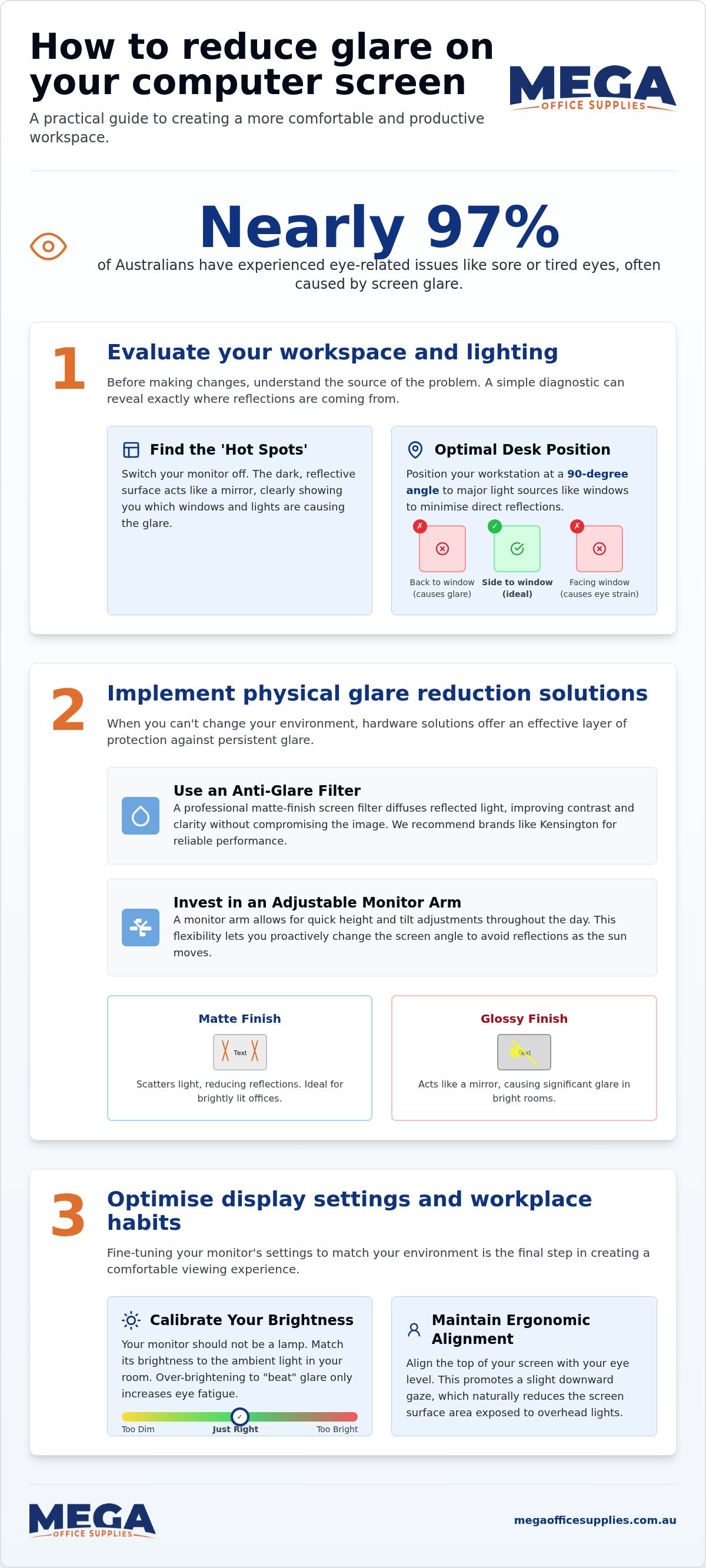
Before you invest in hardware, you must understand what causes screen glare in your specific environment. It's best to start with a simple diagnostic: switch your monitor off completely. The dark, reflective surface acts as a mirror, revealing "hot spots" where windows or overhead lights bounce directly into your line of sight. Identifying these sources is the first step in reclaiming your visual comfort.
To better understand this concept, watch this helpful video:
Strategic monitor positioning and light control
Effective ergonomics requires precise height adjustments. We suggest aligning the top of your screen with your eye level. This setup encourages a slight downward gaze, which reduces the amount of exposed screen surface that can catch light from ceiling fixtures. For tasks requiring physical documents, use localised task lighting. This allows you to dim high-intensity overhead lights that often create washed-out zones on your display. Using adjustable office furniture supplies like monitor arms provides the flexibility needed to adapt as the sun moves. It's a critical step in learning how to reduce glare on computer screen setups in shared or fixed-desk environments.
Implementing physical glare reduction solutions
When environmental adjustments aren't enough, physical hardware interventions provide a secondary layer of protection. Installing a professional anti-glare filter, such as those manufactured by Kensington, is a reliable method for those wondering how to reduce glare on computer screen displays. These filters improve contrast without compromising image clarity. While glossy screens are popular for their vibrant colour reproduction, they often act as high-definition mirrors. We recommend matte-finish monitors or protectors for high-glare settings to scatter light effectively. Clean your screen regularly; dust and fingerprints catch light and create a hazy reflection that intensifies eye strain. You can find specialised A fixed monitor is a liability when the sun moves across an office. Utilising adjustable monitor arms allows for rapid, precise angle changes throughout the day. This flexibility is core to a professional ergonomic workstation setup. By shifting the screen tilt or height, you can bypass the specific angles that cause reflections. It's a proactive approach to learning how to reduce glare on computer screen setups without rearranging the entire office floor plan. This dynamic adjustment is often more effective than static solutions in open-plan workspaces where you cannot control every window.
Anti-glare filters and ergonomic hardware
Selecting a filter with a matte coating is essential for scattering reflected light. This is particularly effective in bright educational environments where overhead lighting is often fixed and intense. Unlike simple privacy filters, dedicated anti-glare films are engineered specifically for light diffusion. High-quality monitor arms that offer both height and tilt adjustment ensure you maintain strict standards. If you're managing a large-scale office fit-out, we suggest browsing our range of office furniture supplies to find the right mounting solution for your team.
Optimising display settings and workplace habits
Once you have addressed the external environment, you must calibrate the display itself. We often see users cranking brightness to maximum to "overpower" reflections, but this actually increases visual fatigue. Your monitor should not function as a primary light source in the room. Instead, adjust the brightness to match your ambient surroundings so the screen feels like a natural part of the desk. Following ergonomic computer use guidelines ensures your eyes aren't working overtime. This is a fundamental part of learning how to reduce glare on computer screen environments.
Adjusting the colour temperature to the warmer end of the spectrum is another effective strategy. This reduces blue light exposure, which is a major contributor to eye strain alongside surface reflections. If subtle glare persists, try these digital adjustments:
- Increase text size and contrast settings to make reading easier through reflections.
- Use warmer display profiles, especially during late-afternoon shifts in the office.
- Adopt the 20-20-20 rule: every 20 minutes, look at something 20 feet away for 20 seconds to reset your eye muscles.
Habitual changes are just as vital as hardware. We recommend regular breaks to prevent the "locking" sensation often felt after hours of focused work. These small shifts in behaviour can significantly improve long-term visual health.
Digital calibration and eye health
Software choices also play a role in how to reduce glare on computer screen displays. Using "Dark Mode" in your applications can minimise the total white light emitted by the display. However, be aware that dark backgrounds can sometimes make physical reflections more visible. It is a trade-off that depends on your specific lighting. Finally, keep your desktop organised. A cluttered background makes it significantly harder for your eyes to focus through surface glare. If you need help selecting the right office technology supplies for a professional setup, our team can assist.
Achieving a glare-free professional workstation
Mastering how to reduce glare on computer screen displays requires a multi-layered approach. By adjusting your desk layout to manage natural light and implementing physical tools like anti-glare filters, you can effectively eliminate reflections. Combined with regular digital calibration and the 20-20-20 rule, these changes ensure your workstation remains a productive, comfortable environment. It's about creating a space where you aren't fighting your monitor every afternoon.
Our team can help you select the right ergonomic hardware. We provide genuine local Australian support and accept official Australian Government purchase orders to ensure a frictionless procurement process for all departments and organisations.
Browse our full range of ergonomic office technology and accessories
Take the first step toward a more comfortable and productive workday by optimising your professional setup today.
Frequently Asked Questions
How do I stop the sun from reflecting on my monitor?
To stop solar reflections, orient your workstation perpendicular to windows. Having the sun directly behind you turns the monitor into a mirror, while having it in front causes your pupils to constrict. We suggest using adjustable blinds to manage light levels. This physical barrier is the most reliable way to prevent the sun from washing out your display.
Are anti-glare screen protectors actually worth it?
Professional filters are a valuable investment when considering how to reduce glare on computer screen setups in bright offices. These filters use a matte coating to scatter incoming light, which prevents sharp reflections without compromising image contrast. They are essential for glossy monitors that lack native diffusion, helping to maintain a clearer view throughout the entire workday.
Does dark mode reduce glare on computer screens?
Dark mode reduces the volume of white light emitted by the display, which can help with general visual fatigue. It doesn't stop external light from bouncing off the glass. In very bright rooms, dark backgrounds can actually make physical reflections from windows more noticeable, so you should test both modes in your specific environment to see which offers better clarity.
What is the best monitor position to avoid glare?
Positioning your monitor at a 90-degree angle to windows is the gold standard for how to reduce glare on computer screen displays. Ensure the top of the screen is at eye level to reduce the amount of light caught from overhead fixtures. A slight forward tilt can also help redirect any remaining reflections away from your direct line of sight.

Article by
Mega Office Supplies Team
The Mega Office Supplies Team provides practical buying guides and workplace advice for Australian businesses, schools, government organisations, healthcare providers, hospitality venues, warehouses and home offices. Family owned and operated since 2008 and based in Tweed Heads South on the Gold Coast–Tweed border, Mega Office Supplies helps Australian workplaces choose the right office supplies, furniture, technology, cleaning, safety and education products — backed by genuine local service from real people.
General Information
This article is provided as general information only to help customers compare and choose office, workplace, school, cleaning, technology, furniture, safety and business supplies. Product details, specifications, compatibility, availability, pricing and suitability may vary. Always check the individual product page, manufacturer information, workplace requirements and relevant safety guidance before purchasing or using a product.


